
Living Wall for Mac: a little world on your desktop — Black Mango's guide
Living Wall turns a Mac desktop into a living scene and gives every icon a place in it. Black Mango's English guide to the free wallpapers, the $2.99 First Pack, icon following and permissions.
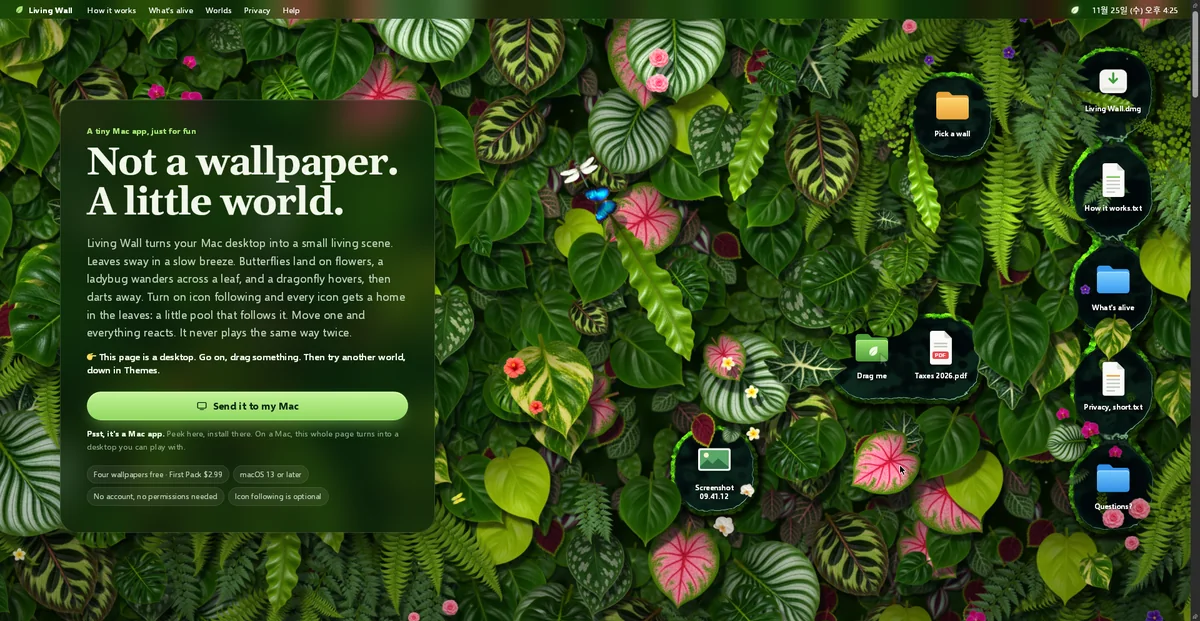
A wallpaper is the screen you look at all day, and most of them never move. Living Wall makes that screen a small living place: leaves sway in a slow breeze, a butterfly lands on a flower, a ladybug crosses a leaf, a dragonfly hovers and darts away. Turn on icon following and every desktop icon gets its own spot in the scene. This is the English guide Black Mango put together from the app's official site and privacy page, so an English-speaking maker can see the same facts a Korean reader sees.
Living Wall at a glance
Living Wall lives in the menu bar as a leaf. There is no Dock icon, no window to keep, no account to create and no permission asked on first launch. The scene never plays the same way twice: butterflies, a bee, a dragonfly and a ladybug come and go on their own, each picking a flower or a leaf to land on.
| Item | Detail |
|---|---|
| Made by | Living Wall · Alexander Malakhov |
| Runs on | macOS 13 or later, every display |
| Free | The app plus four wallpapers: Autumn Yard, Little Lagoon, Beach, Meadow |
| Paid | First Pack $2.99 (Lush Green, Living Reef, Paper Desert) · Christmas Pack $2.99 · one-time, no subscription |
| Price change | First Pack is $2.99 until 1 January, then $3.99 |
| Account and tracking | No account · one anonymous usage count a day, can be turned off in Settings → About |
| Permissions | None by default · macOS asks once for Finder automation only if icon following is turned on |
Prices and versions can change, so check the official site before installing. The site itself works as a desktop, and six worlds can be tried there before you download anything.
Two steps to install, the third is optional
Open the disk image, move the app, run it, and the wallpaper starts. Everything after that happens from the leaf in the menu bar.
- Download LivingWall.dmg from livingwallapp.com and open it.
- Drag Living Wall into your Applications folder.
- Open it from Applications and look for the leaf next to the clock. The wallpaper starts right away.
- Optional: click 'Turn on icon following' in the welcome window and allow Finder automation, so icons get their own places in the scene.
If icons snap back into a grid, Finder is tidying them. Right-click the desktop, choose Sort By → None and turn off Use Stacks, and they stay where you put them.
Every icon gets a home
This is where Living Wall separates itself from a looping video wallpaper. With icon following on, the leaves part around each icon and leave a little pool. Drag the icon and the pool follows; park two icons close together and their pools join. Drop a folder beside a resting ladybug and it moves on.
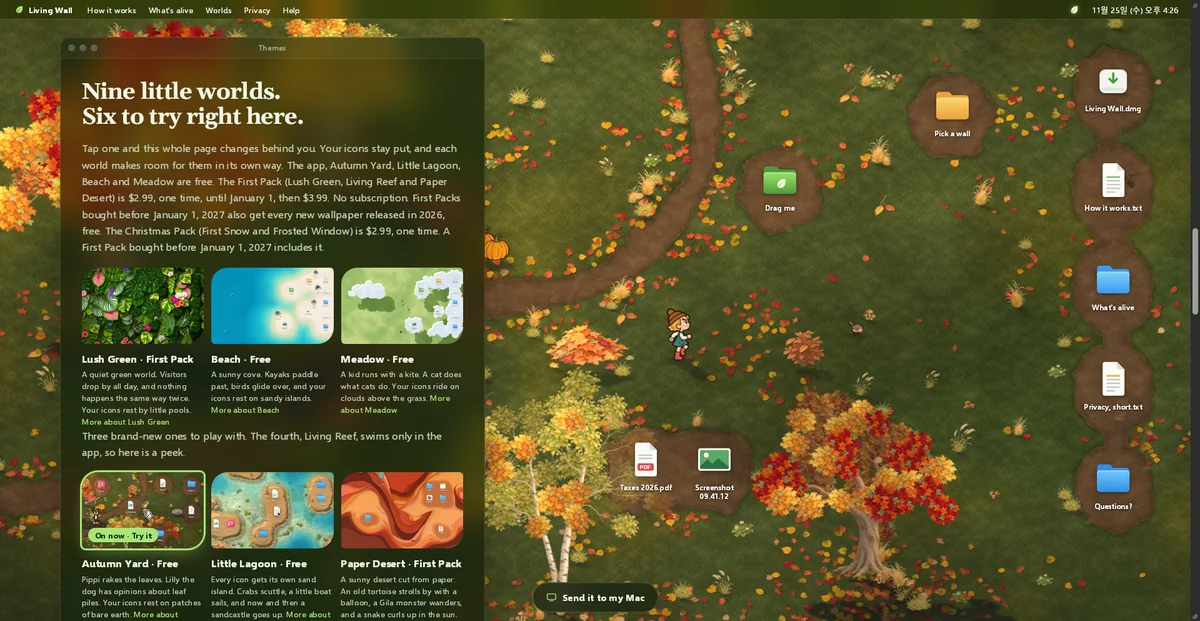
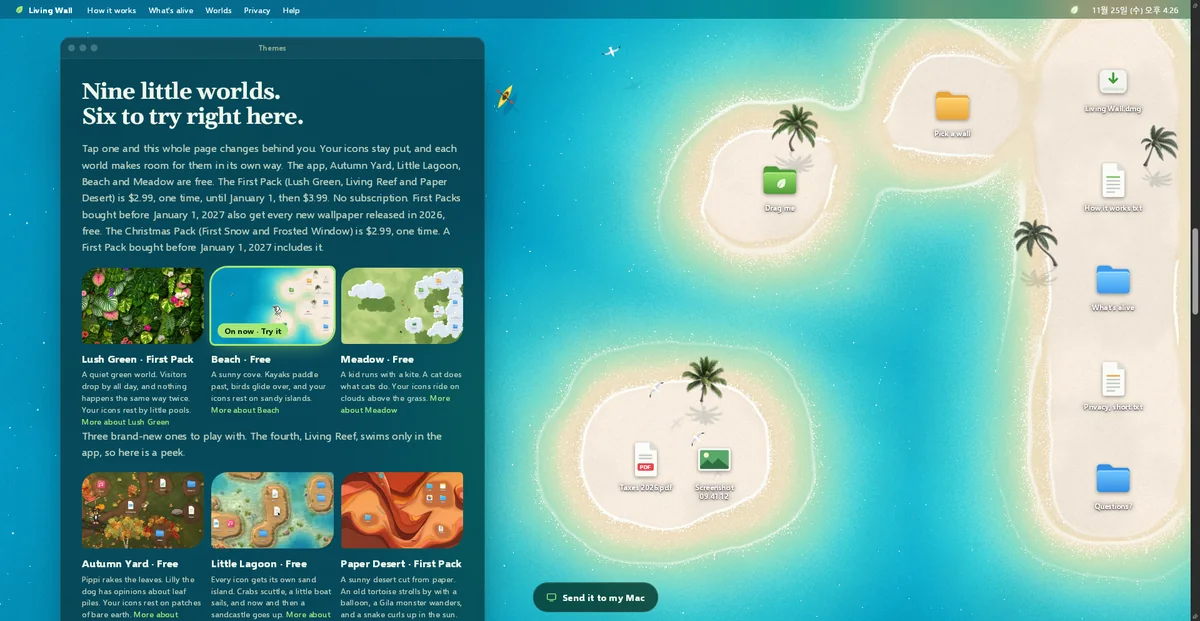
Each world makes room in its own way. On Beach icons sit on sandy islands, on Meadow each one rides its own cloud, in Autumn Yard they rest on bare earth, and on Frosted Window each icon wipes its own clear patch in the frost. On Living Reef the water opens under a folder you drop on the coral. Bigger screens get more visitors.
Nine worlds and what they cost
Nine worlds ship with the app, four of them free. The rest open with a one-time pack.
| Worlds | Pack | Price |
|---|---|---|
| Autumn Yard · Little Lagoon · Beach · Meadow | Included | Free |
| Lush Green · Living Reef · Paper Desert | First Pack | $2.99 until 1 January, then $3.99 |
| First Snow · Frosted Window | Christmas Pack | $2.99, included in a First Pack bought before 1 January 2027 |
A First Pack bought before 1 January 2027 also includes every new wallpaper released during 2026. There is no subscription.
Permissions, battery and multiple displays
These are the questions people ask before leaving an app running all day.
- Permissions: the wallpaper itself needs none. With icon following on, macOS asks once whether Living Wall may control Finder, and the app asks Finder only for the size and place of each icon — never file names or contents. Finder still handles every click, drag and drop.
- Battery: about 30 frames a second when calm, 60 only while you drag, and it rests when hidden or when Animation is off.
- Displays: each display can have its own wallpaper, or keep your normal macOS picture.
- Spaces: a wallpaper shows on every Space of its display, or you can choose per Space from the menu.
- Quitting: your normal wallpaper comes back, and nothing on your desktop moves.
The anonymous usage count is one short summary a day — which wallpapers were on screen and roughly how long — with no name, no email and no file names. It can be turned off in Settings → About.
Where to find it on Black Mango
Living Wall is listed as a founding maker of Black Mango, the Korean service market where people compare and try apps, web services, games and AI tools without signing in. The card carries a short summary, the price line, screenshots and a link straight to the official site, and a short Korean guide sits beside it for Korean readers.
Services in this guide
 Living WallA Mac app that turns the desktop into a living scene and gives every icon a place in itOpen →
 FantasticalA Mac calendar that keeps your schedule and to-dos in the menu barOpen →
 RaycastA Mac launcher that opens apps, files and commands from the keyboardOpen →
Frequently asked questions
Is Living Wall free?
The app and four wallpapers (Autumn Yard, Little Lagoon, Beach, Meadow) are free. The First Pack is $2.99 one time until 1 January, then $3.99, and the Christmas Pack is $2.99 one time. There is no subscription.
Do I need an account?
No. There is no account and no sign-in. The app sends one anonymous usage count a day, which you can turn off in Settings → About.
Does it need permissions?
Not for the wallpaper. Icon following is optional, and turning it on asks once for Finder automation so the app can learn where your icons sit. It never reads file names or contents.
Why do my icons snap back?
Finder is tidying them. Right-click the desktop, choose Sort By → None and turn off Use Stacks.
Will it drain my battery?
It idles at about 30 frames a second, rises to 60 only while you drag, and rests when hidden or when Animation is off.
Where can I read more about Black Mango?
The service card on Black Mango links to the official site, and the Korean guide next to it covers the same steps for readers in Korea.